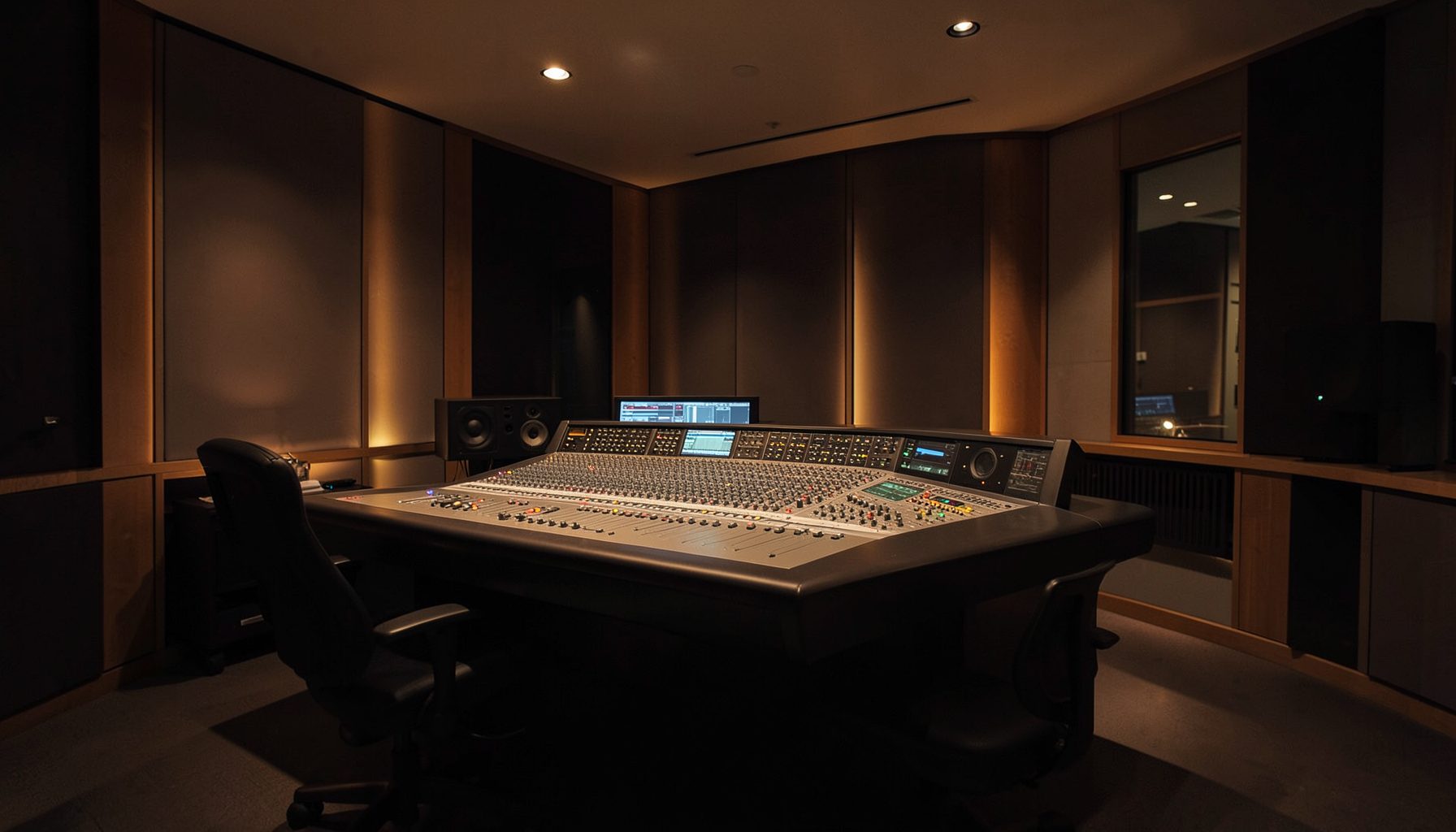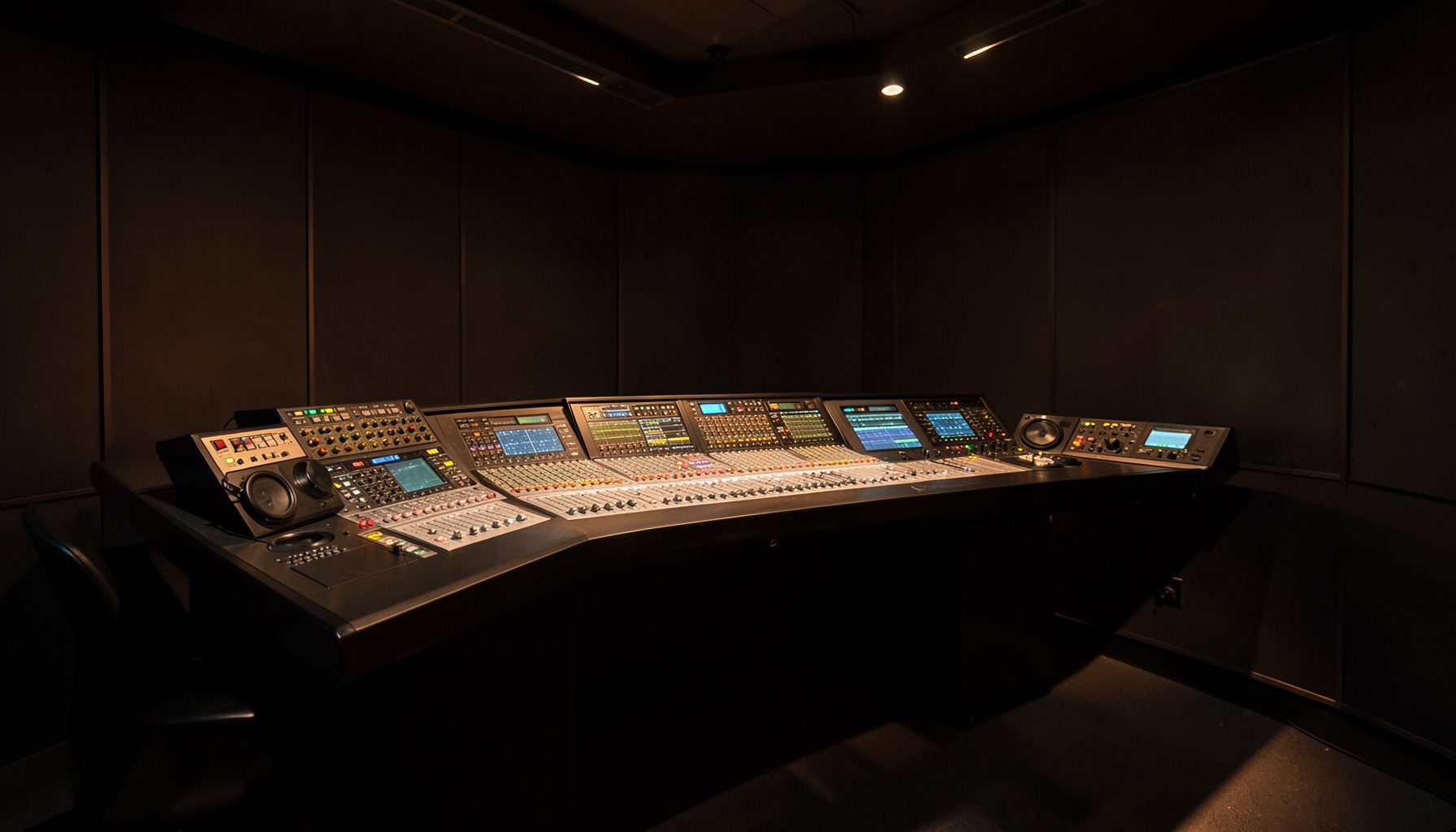
VisTool multi-touch gestures for intuitive fader and EQ control
Radio operators work under constant time pressure. A guest joins the program, a music bed needs adjustment, and a presenter’s microphone requires a quick tonal correction—all while the show continues live. VisTool addresses this pace with a graphical control environment designed for touch operation and networked Lawo workflows.
Multi-touch gestures can make software-based mixing feel immediate. Instead of navigating through several menus, an operator can reach for a fader, adjust a parameter, or shape an equalizer curve directly on the screen. The result is a control surface that supports both rapid reactions and precise audio decisions.
Within the Lawo ecosystem, VisTool can complement Ruby mixing consoles, Power Core audio nodes, and other Broadcast 3.0 components. Its value lies in giving each studio a configurable visual workspace that matches the way its production team works.
Touch-first control in VisTool
A well-designed VisTool surface presents the most important controls at a glance. Channel faders, mute functions, monitoring controls, meters, and processing parameters can be arranged according to the studio’s operational priorities. This reduces the need to switch between unrelated views during a live broadcast.
Multi-touch interaction adds another layer of speed. A single finger can move a fader, while a second touch can help the operator work with another control or maintain a visual reference. On a suitable touchscreen, gestures provide a familiar alternative to mouse-driven editing and make the interface more accessible to operators moving between studios.
Fader moves with greater confidence
Fader control benefits from the direct relationship between hand movement and level change. A vertical drag can raise or lower a channel, while a deliberate touch-and-move action supports smooth transitions for speech, music, and production elements. Fine adjustment is easier when the fader track is large enough to show position clearly.
Multi-touch is especially useful when several sources need attention at once. An operator can balance a presenter’s microphone against a music bed, manage a remote guest, or ride multiple sources during a contribution. The exact behavior depends on the configured VisTool layout, display hardware, and access settings, so surfaces should be tested under real operating conditions.
EQ shaping without breaking concentration
Equalization often requires accuracy rather than speed alone. A touch interface can place frequency, gain, and bandwidth controls close together, helping an operator make a tonal change without losing sight of the channel or processing context. Dragging an EQ point offers a direct way to locate a problem area and refine the result.
For voice work, this may mean reducing muddiness, adding presence, or controlling harshness during a live segment. For music and production playback, the same screen can support quick corrective changes. Operators should keep processing moves moderate and use monitoring references, since a gesture can be fast while a good audio decision still requires careful listening.
| Control task | Useful touch action | Practical broadcast benefit |
|---|---|---|
| Channel level | Drag the fader vertically | Fast, visible level rides |
| Fine level adjustment | Use a short, controlled movement | More precise speech or music balance |
| EQ frequency | Move an EQ point horizontally | Quick targeting of tonal areas |
| EQ gain | Move a point vertically | Immediate boost or cut |
| Multiple sources | Work with more than one touch point where supported | Faster response during live changes |
| View navigation | Tap assigned controls or pages | Less time spent searching for functions |
A consistent surface across roles
VisTool can support different views for presenters, producers, engineers, and technical operators. A presenter-facing layout might emphasize microphone level, talkback, and monitor controls. A producer may need source selection, telephone contribution controls, and show-related routing. An engineer may require deeper access to processing and signal flow.
This separation helps keep the interface understandable. Operators see the controls relevant to their responsibilities instead of a dense collection of every available parameter. When a station standardizes its visual layout, staff can move between studios with less retraining and fewer accidental changes.
VisTool can also sit alongside physical controls rather than replacing them. Ruby’s hardware surface may handle the most frequently used mixing actions, while a touchscreen provides expanded processing, routing, or monitoring views. Stations refining this division can also review Ruby soft-key access to place recurring functions closer to the operator.
Practical habits for reliable gesture control
The best multi-touch workflow combines a responsive display with clear visual design and disciplined operation. Large control targets, logical grouping, and sufficient spacing reduce accidental touches. Color and labeling should communicate function without making the screen visually crowded.
Before putting a new surface on air, teams should test it with the gestures they expect to use during a busy program. Checking touch response, screen position, user permissions, and fallback controls can prevent avoidable interruptions.
- Keep critical faders and mute controls in a stable, familiar location.
- Use separate views for routine operation and advanced engineering access.
- Leave enough spacing between adjacent controls to reduce mis-touches.
- Test EQ gestures with speech, music, and remote contributions.
- Provide physical or alternate controls for essential functions.
Connected control for Broadcast 3.0 workflows
VisTool becomes more powerful when its touch interface is connected to a broader networked production environment. Power Core can provide centralized audio processing and routing, while Ruby supplies tactile control for operators who prefer dedicated hardware. Together, these elements can distribute control without forcing every function into a single console position.
This approach also supports flexible studio design. A control room, backup position, production booth, or remote workspace can present the appropriate VisTool view while working with shared audio resources. The interface becomes a practical window into the station’s wider signal and control architecture rather than an isolated application.
For radio teams, the main advantage is operational clarity. Touch gestures shorten the path from a production decision to an audible result, while configurable layouts keep the workflow aligned with each program format. Used thoughtfully, they can make fader rides smoother, EQ adjustments more deliberate, and live response more consistent.
Explore VisTool as part of a Lawo networked radio setup and evaluate its multi-touch workflow with the real displays, operators, and production scenarios used in your studio.