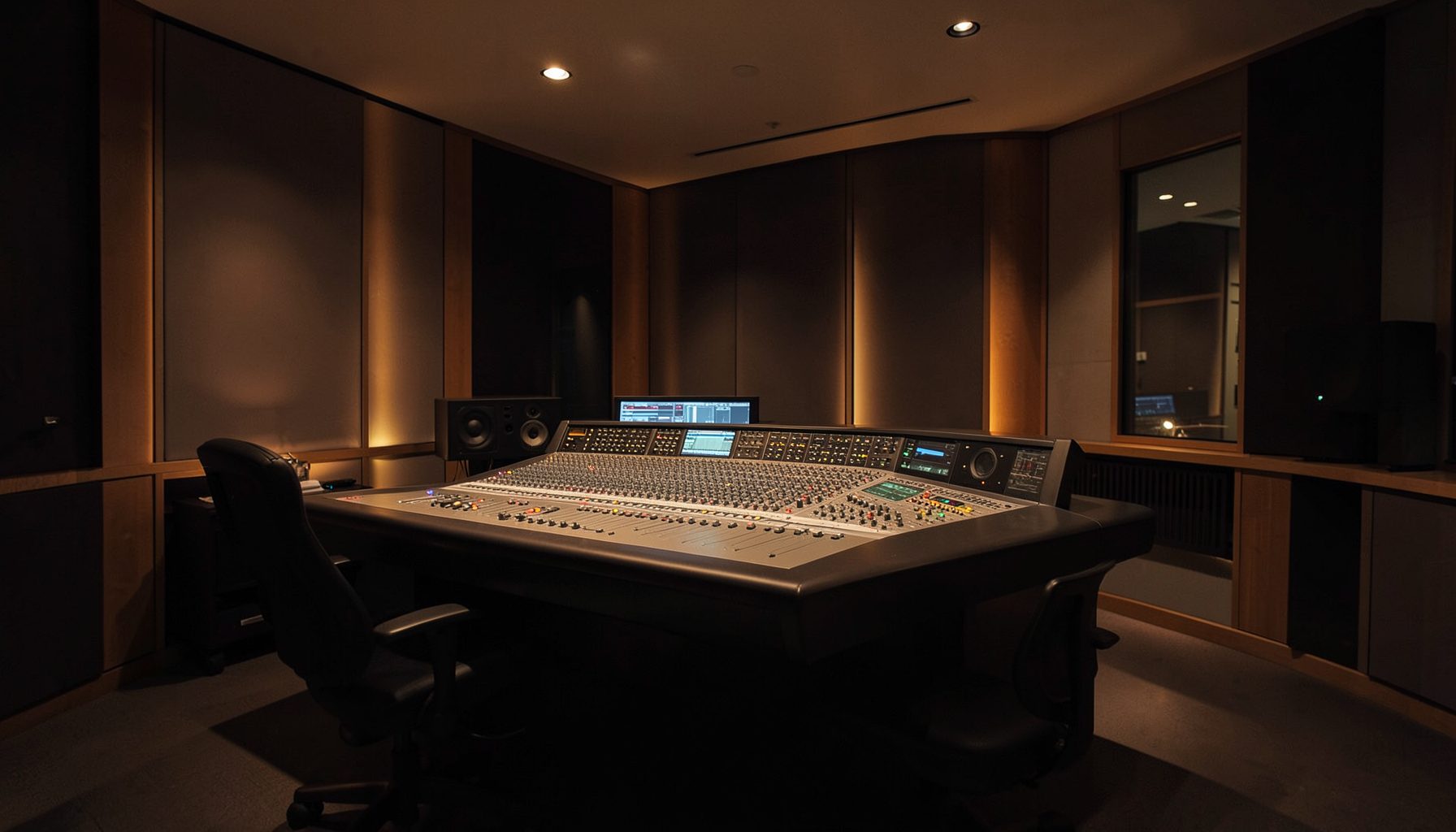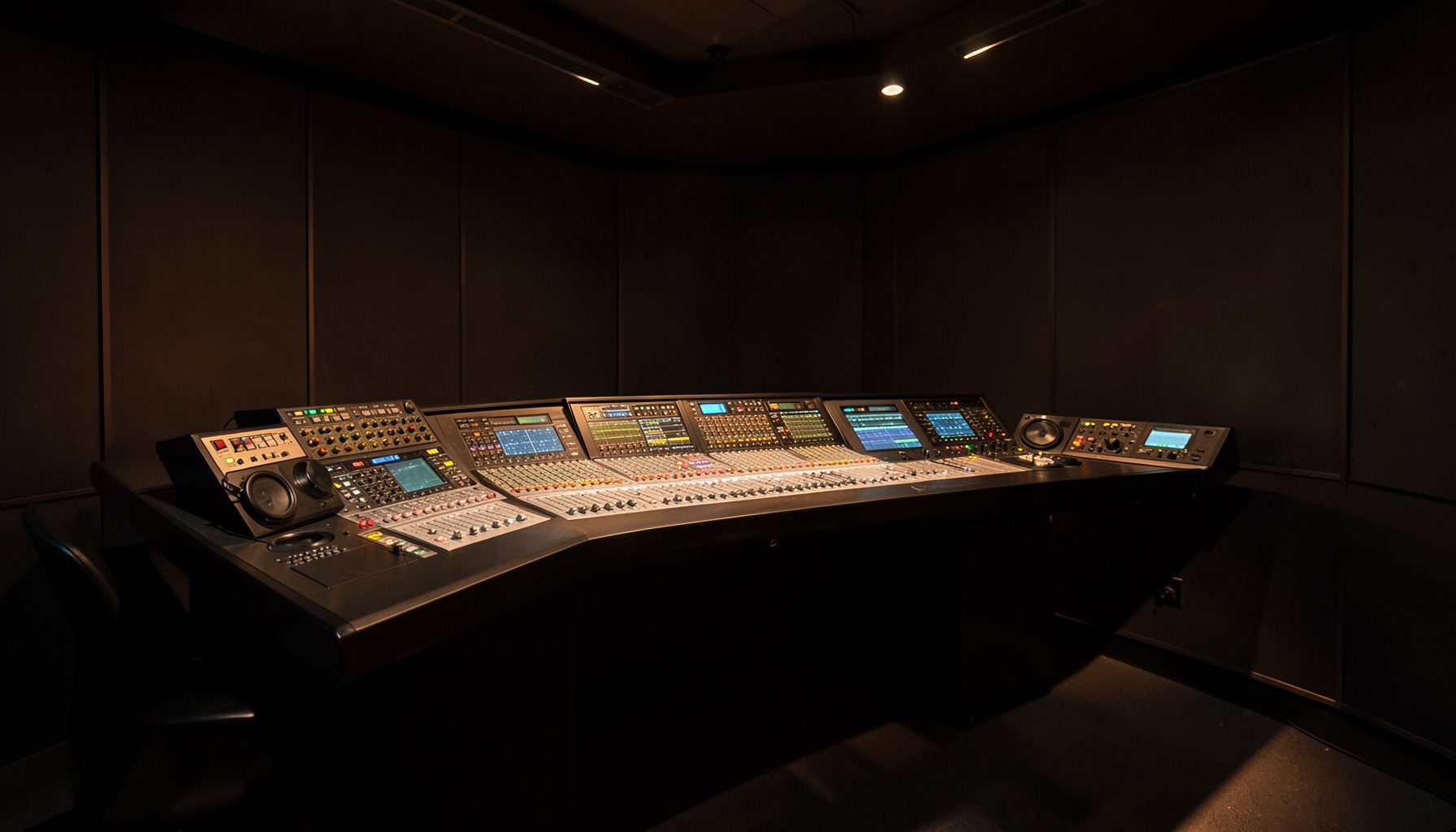
Designing a Virtual Radio Studio Floor Plan in VisTool
A virtual radio studio floor plan in VisTool gives remote operators a clear, visual way to manage sources, mixes, talkback, routing and monitoring. Instead of relying on scattered controls or memorised shortcuts, the operator sees a workspace arranged around the tasks performed during a live shift.
For Australian broadcasters, this approach suits distributed teams, regional bureaus and hybrid studios. An operator in Sydney may need to coordinate with a producer in Brisbane, a correspondent in Perth and a network playout system elsewhere, all while keeping the on-air path stable and easy to understand.
VisTool can be shaped around the station’s operating model rather than a fixed hardware layout. When it is linked with Lawo’s networked audio infrastructure, the screen becomes a practical control surface for a software-defined studio, whether the shift is run from a main facility, a home office or a backup location.
Start With The Operator’s Shift
Begin by mapping the sequence of a typical programme. Identify what the presenter, producer, panel operator and technical operator must reach within seconds. Core functions usually include microphone levels, telephone or codec feeds, playout channels, guest returns, monitoring, talkback and the final programme bus.
The floor plan should follow this workflow. Put frequently used controls in the central viewing area and move infrequent configuration tasks into secondary pages. A morning show may need quick access to music beds and multiple studio microphones, while a regional news shift may prioritise codecs, remote contributors and announcer talkback.
Australian stations often work across large geographic areas, with networked content moving between capital cities and regional markets. Designing the interface around real handovers helps prevent confusion when a local breakfast programme crosses into a national feed, or when a late arvo bulletin requires a fast change of source.
Create A Clear Visual Hierarchy
A VisTool page should communicate status before the operator touches anything. Group controls by function and use consistent colours, labels and spacing. Microphones, playback, external contributors, monitoring and transmission paths should look distinct without turning the screen into a wall of bright indicators.
Use larger controls for actions that carry operational risk, such as taking a source to air, switching a studio monitor feed or changing a bus assignment. Smaller controls can handle less urgent functions, including cue level trims or secondary monitor selections. Labels should use familiar station language rather than engineering shorthand.
Avoid designing the page as a literal drawing of the studio furniture. A remote operator does not need a digital replica of the room; they need a quick mental model of signal flow and responsibility. A compact “On Air” area, a dedicated contributor section and a clearly separated monitoring panel are usually more useful than decorative visual detail.
Separate Local And Remote Sources
Remote workflows become easier to manage when every source has an obvious home. Create dedicated areas for codecs, IP callers, remote studios, outside broadcasts and contribution services. Include source names, connection states and return paths where available, so the operator can distinguish a silent feed from a disconnected one.
For stations supporting regional sport, council broadcasts or community events, the page may need several contribution paths that are used only occasionally. Keep these available without allowing them to compete visually with daily sources. A dedicated remote page can hold backup codecs, clean feeds and engineering controls while the main page remains focused on the live programme.
Lawo’s RƎLAY radio tools can complement this model by supporting virtualised radio operations and distributed production workflows. The key is to show each remote path in terms of its operational purpose: contributor audio, presenter return, producer talkback or programme contribution.
Build Pages For Different Roles
A single interface rarely suits everyone. Presenters may need microphone control, cough functions, monitor selection and talkback. Producers may require source switching, guest management and interview routing. Technical staff may need access to deeper network, bus and failover controls.
VisTool pages can reflect these roles through separate views or carefully arranged sections. Keep the presenter view uncluttered, while giving the producer a wider overview of programme elements. Engineering pages should expose detailed routing and diagnostics without placing those functions beside an everyday “live” button.
This role-based design is valuable when operators work remotely from laptops or compact screens. A producer in Melbourne should not have to navigate a full technical matrix to open a guest channel, just as a duty engineer should not be restricted to a simplified presenter layout during fault-finding.
Plan For Monitoring And Recovery
Monitoring deserves its own area because remote operation removes many of the physical cues available in a conventional studio. Show the selected monitor source, cue state, talkback destination and key output levels in a stable location. If a source is muted, off-line or routed unexpectedly, the status should be immediately visible.
Include clear recovery actions for common faults: switching to a backup feed, selecting an alternate codec, restoring a standard monitor path or moving to a safe programme source. These actions should be tested during routine rehearsals rather than discovered during a live bulletin.
Connectivity in Australia can vary between metropolitan offices, regional facilities and home workstations, even where NBN services are available. A floor plan should therefore support a degraded but understandable operating mode. If video updates lag or a remote contributor drops out, essential audio controls and status information must remain easy to interpret.
Test The Layout Under Pressure
Evaluate the design with realistic scenarios rather than a quiet studio check. Simulate a lost codec, a guest joining late, a presenter needing an immediate talkback route and a handover between local and network programming. Watch how many page changes and decisions are needed for each task.
Use consistent naming across VisTool, Ruby, Power Core and associated studio documentation. “Guest 2 Return” should mean the same thing everywhere, while ambiguous labels such as “Input 14” create avoidable errors. Test the interface on the screen sizes remote operators actually use, including smaller laptop displays.
A practical review should involve presenters and producers, not just system designers. Their feedback reveals whether the virtual studio matches the pace of a live shift, from a Sydney breakfast programme to a community station in regional Queensland. Refine the layout until the most important actions are visible, predictable and recoverable.
The best VisTool floor plan behaves like a calm control room: it exposes the right information, keeps critical actions close at hand and makes remote collaboration feel routine. Start with the shift workflow, separate roles and signal paths, design for Australian network realities, then validate every page during realistic on-air drills.